Swervle Guide How to play
Swervle Controls and How to Play
Use WASD or the arrow keys to drive, Space for the handbrake, R to recover at your last checkpoint, and F to restart. On a phone, use the on-screen controls. Open the official browser race and select Race Now. Make your first attempt a clean finish so you have a time to improve on.
Swervle keyboard controls
| Input | What it does |
|---|---|
| WASD or arrow keys | Drive and steer |
| Space | Use the handbrake |
| R | Recover at the previous checkpoint; the timer keeps running |
| F or Backspace | Restart the run |
| C | Change camera view |
| G | Show or hide ghost cars |
| Esc | Open the game menu and leaderboard |
| L | Toggle flashing lights on supported Emergency Pack vehicles |
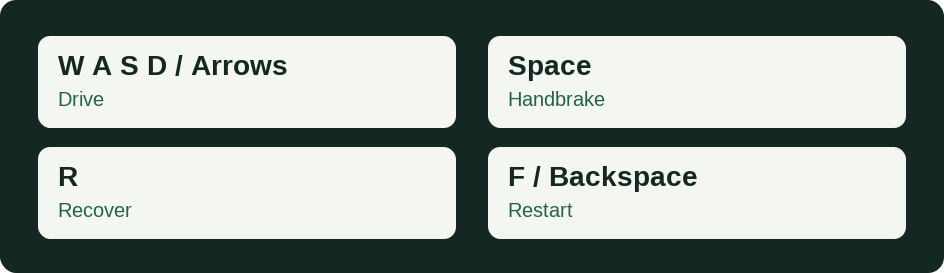
The first seven controls are documented in the developer’s browser controls reference. The lights shortcut applies to the vehicles in the Emergency Pack announcement. It does not affect how the car drives.
How to play Swervle on a phone
Open the official game in your phone’s browser. Start a race and use the touch controls visible over the driving view. Take a short run to learn how long a tap holds your steering and where your thumbs can rest without obscuring the road. If the view feels cramped, try landscape with rotation unlocked and choose the orientation that gives you a clearer view on your device.
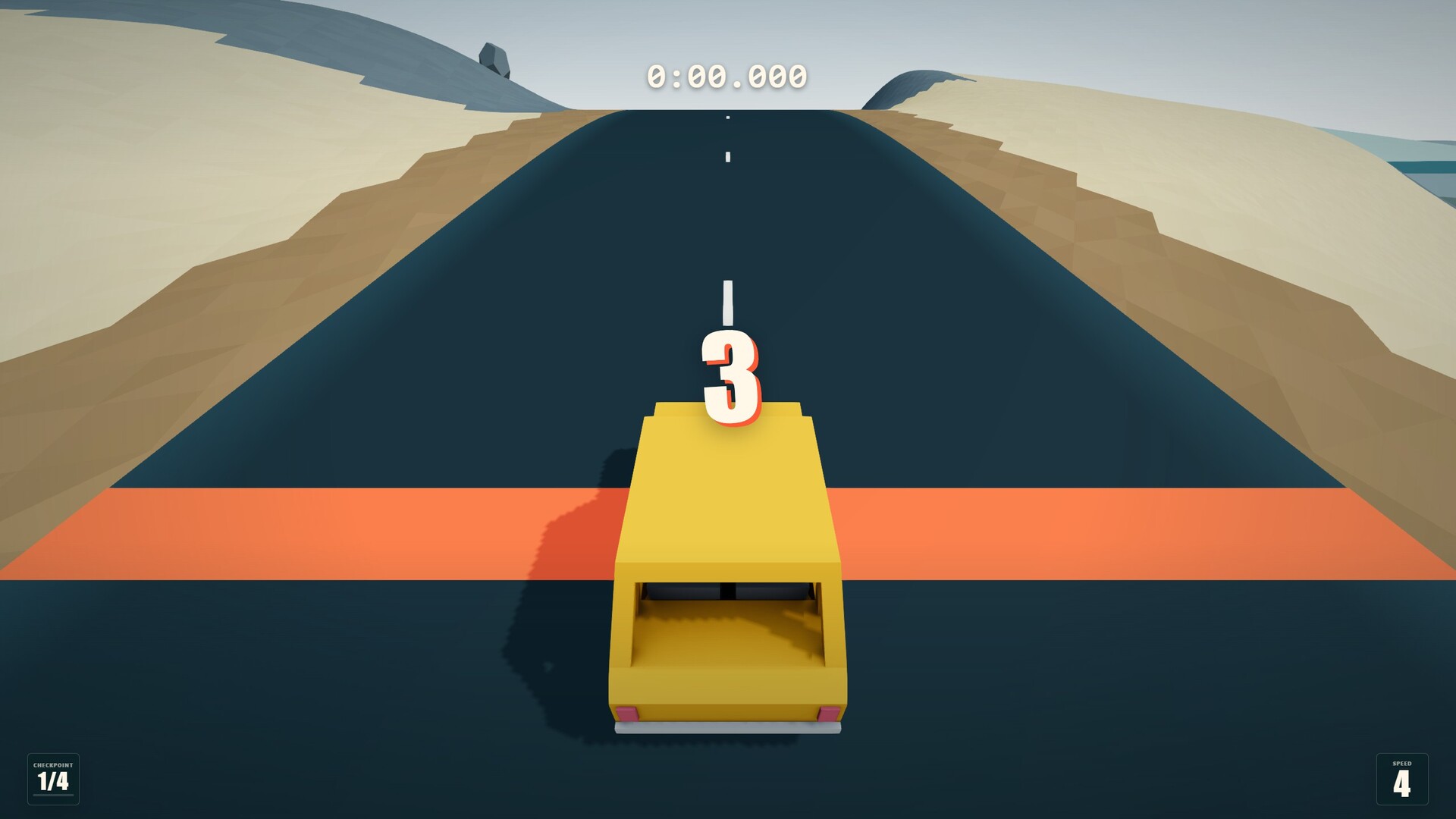
On a small screen, notice the checkpoint indicator and the road ahead before adding speed. If you keep missing a turn because the next gate appears late in your view, prioritize a clear camera angle and a repeatable approach before trying to drive the corner faster.
When to recover and when to restart
Recover with R when a spin or a missed turn has left the car pointed the wrong way and you want to learn the rest of the route. The game takes you back to the last checkpoint and keeps the same clock going. Recovery is useful when the next part of the course is the bit you came to practice.
Restart with F or Backspace when you want to compare a fresh timed run or practice the opening approach. For example, if you spin at the first corner while testing a new braking point, start again under the same conditions. If you spin midway through a first look, recover and find out what comes next.
Three places to watch the clock
- Checkpoint order. Follow the next gate shown by the game. An attractive turn that points you away from the next checkpoint costs time if you have to turn around. Use the counter to confirm that you cleared a gate before setting up the next one.
- Ice at corner entry. The developer documents lower grip on ice. Try easing off earlier on a second attempt and see if it reduces the need for a large steering correction on the exit. Compare the result with your first finish.
- A ramp followed by a turn. Ramps boost speed, so check where the car will touch down. If the next gate sits around a bend, try an approach that leaves the car pointed toward that gate and compare the full run time.
Practice with a ghost and a baseline time
Finish once with ghosts hidden if you need an uncluttered view. Record the time, then pick a racer from the in-game leaderboard. Watching a ghost through one difficult section gives you a specific reference for when to turn or straighten the car. Ghosts do not collide with you. Use G to bring them back when you want the reference again.
For the next two runs, change one input at one corner and keep the rest of your approach close to the baseline. Compare finish times and whether you needed to recover. A small improvement you can repeat is easier to build on than one fast run you cannot reproduce.
If the race loads but feels choppy, use the game’s Graphics setting or check that graphics acceleration is enabled in your browser.